

Your step-by-step guide: preparing EasyBooks for MTD for Income Tax
This guide walks you through how to get EasyBooks ready for Making Tax Digital for Income Tax (MTD for Income Tax). It is written for sole traders and landlords who will need to keep digital records and send quarterly updates to HMRC.
MTD for Income Tax is a new requirement introduced by HMRC. From 6 April 2026, sole traders and landlords with gross income above £50,000 per year will need to keep digital records and send quarterly updates of their income and expenses to HMRC using compatible software. EasyBooks supports this.
You can keep the required digital records and send your quarterly updates to HMRC directly from EasyBooks. Follow the steps below to set everything up at your own pace.
The MTD for Income Tax integration is available in EasyBooks
The MTD for Income Tax integration is already built into EasyBooks and is included in the Bronze, Silver and Gold plans. If you cannot see it yet, please update your app to the latest version.
Get the latest version of the app:
Setting up EasyBooks for MTD for Income Tax
Follow the steps below to get EasyBooks ready, from signing up with HMRC to recording your income and expenses the right way.
Step 1: Sign up for MTD for Income Tax with HMRC
Before you can use the MTD features in EasyBooks, you need to sign up for MTD for Income Tax through HMRC. This is a step HMRC requires first, and the integration will not work until it is done.
Step 2 (non-VAT registered users): Make sure your EasyBooks businesses are set up correctly for MTD
- If you are a sole trader with a single income source, record all related income and expenses in one EasyBooks business.
- If you are a sole trader and have more than one income source*, create a separate EasyBooks business for each one.
- If you are a landlord, record income and expenses for all your UK rental properties in one EasyBooks business.
* Not sure how many income sources you have as a sole trader? Log in to HMRC Online Services and check this in the Self Assessment section of your account.
Step 2 (VAT registered users): Make sure your EasyBooks businesses are set up correctly for MTD
If you are VAT registered, keep all your income sources together in one EasyBooks business. Give each income source its own separate account, and never record two different income sources in the same account.
Keeping one business with a separate account per income source lets you report each source correctly for MTD for Income Tax, while your records stay in one place for VAT.
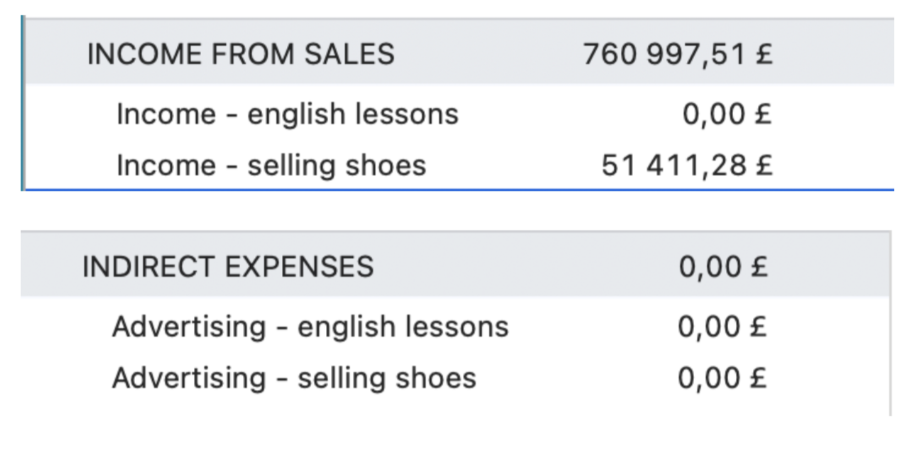
Step 3: Record your income correctly for MTD (from 6 April 2026)
Quarterly updates include only the income you earn from running your business as a sole trader and/or from renting out property. Income from other sources, such as investments, savings interest or pensions, is not included in these updates.
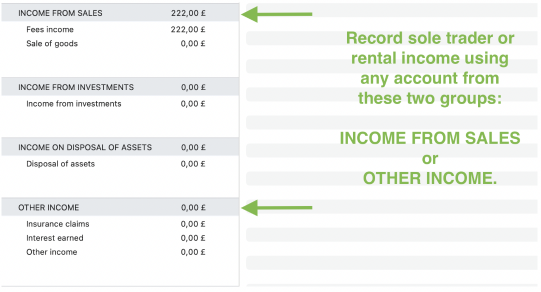
When you record income, use only accounts from these groups: INCOME FROM SALES and/or OTHER INCOME.
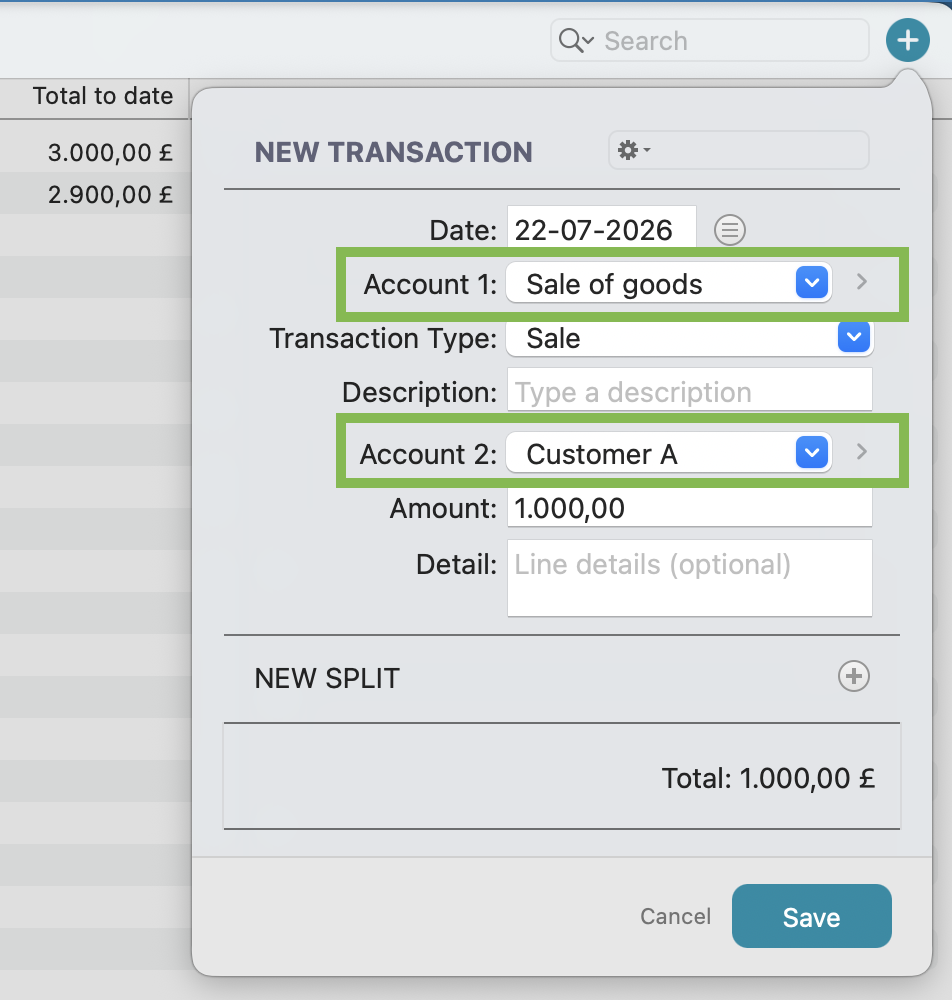
It also matters which two accounts the transaction sits between. Record each income transaction between a customer and an income account: the customer is the first account, and the income account is the second.
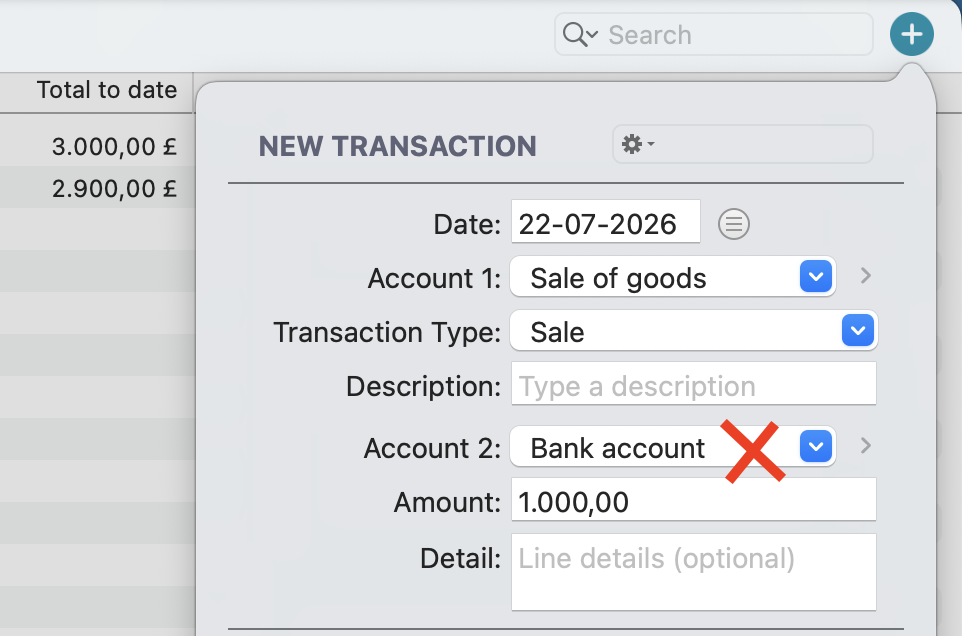
If you use cash basis, you then record a payment against that transaction, so the payment date is captured. We explain how to do this in the step on which date to use, below.
Step 4: Record your expenses correctly for MTD (from 6 April 2026)
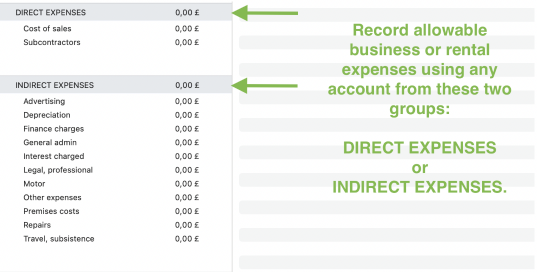
Record each expense the same way you record income in Step 3, but between a supplier and an expense account (DIRECT EXPENSES or INDIRECT EXPENSES). As with income, please do not record an expense between an expense account and a bank account. If you are not sure, take another look at Step 3.
Step 5: Make sure you know which date to use for your records
The date that determines when income and expenses are reported depends on the accounting method you use.
* Not sure which accounting method you use? Log in to HMRC Online Services and check it in the Self Assessment section of your account.
For traditional accounting (accruals)
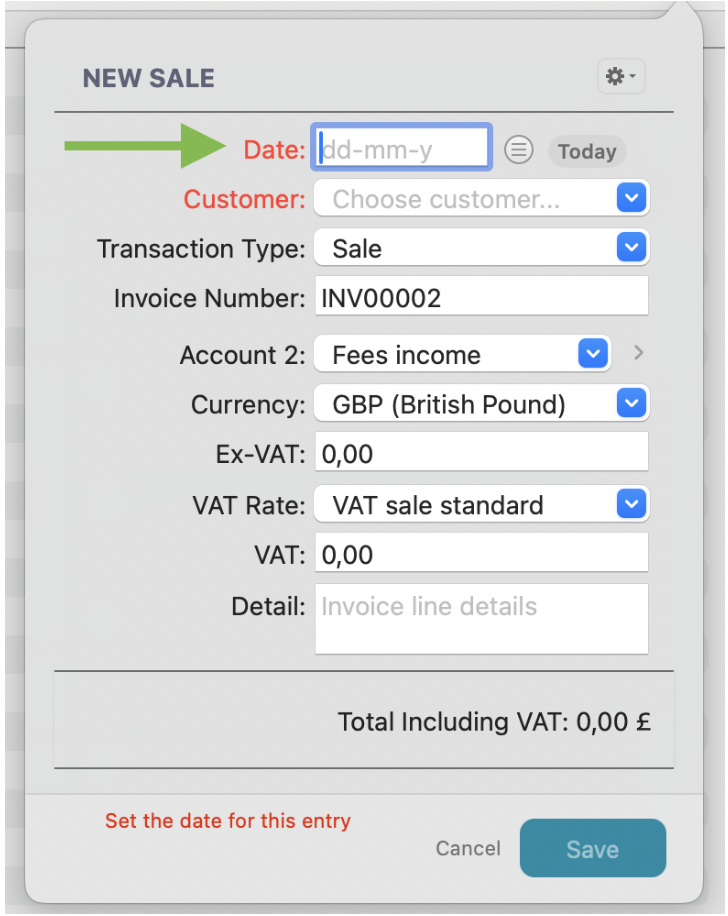
The transaction date will be treated as the reporting date. This is the date when the income was earned or the expense occurred.
For cash basis
The payment date will be treated as the reporting date.
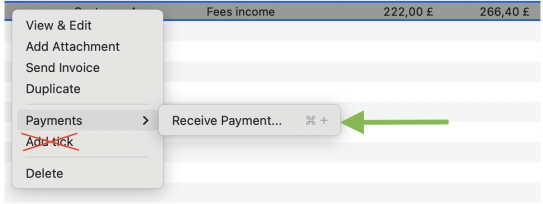
Because of this, if you use cash basis, please do not use “Add tick” to mark a transaction as paid. This option does not record the payment date required by HMRC. Instead, use Payments > Receive payment, where you can enter the actual payment date.
Step 6: Connect to HMRC and set up your income sources
In the side bar of the main menu, find the Income Tax section and select Quarterly updates. Make sure you are on the device that holds your most up-to-date business data. Tick the checkbox “I confirm this device has the most up-to-date business data:” and click Continue.
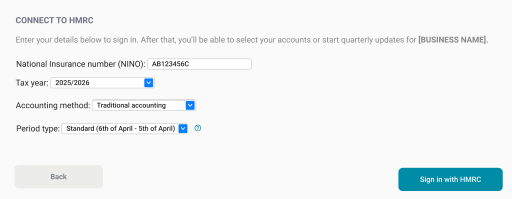
You will then be asked to sign in to HMRC and to enter a few details: your National Insurance number (NINO), your accounting method*, and your period type**.
* Not sure which accounting method you use? Log in to HMRC Online Services and check it in the Self Assessment section of your account.
** Not sure whether to choose standard or calendar? The default is standard. HMRC lets you choose calendar quarterly periods instead, but only if your accounting period runs from 1 April to 31 March.
If you get an error when signing in, go back to Step 1 and check that you have signed up for MTD for Income Tax with HMRC. If you have signed up and still see the error, please contact our support team.
Once you are signed in, HMRC shows a list of your income sources. This includes all of your sole trader businesses and your property income as a landlord, where these apply. Choose the first income source you want to set up and click Select accounts.
This opens the configurator, where you do two things for that income source. First, you choose which accounts hold the transactions you want included in your quarterly updates.
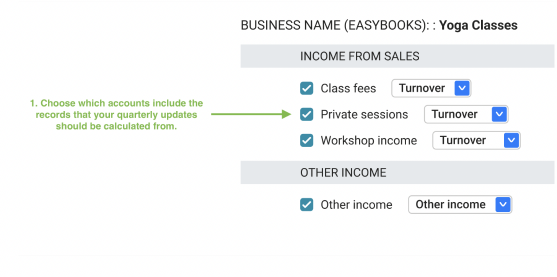
Then, you link each of those accounts to the correct HMRC category, as described below.
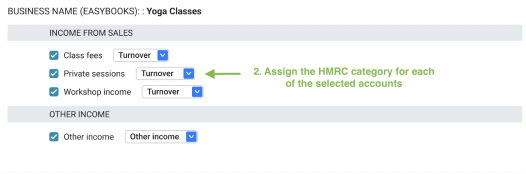
HMRC requires each income digital record to be linked to the correct income category. Within one account, you should report only one type of income. You can use several accounts for the same category, but they should all represent the same income source. For example, you can use several accounts for the Turnover category, but you should not mix Turnover and Other income within one EasyBooks account.
Repeat this for each income source on the list, so every source is set up before you send your quarterly updates.
You can check here which income categories HMRC provides for sole traders and which ones apply to landlords. For most sole traders the reported figure will be “Turnover”, while for landlords it will usually be the “Period amount”. If you are unsure which applies to you, it is best to confirm this with your accountant.
Step 7: See how to link your expense accounts to HMRC categories
Once you have finished linking your income accounts in the previous step, you will be asked to choose your expense accounts. This works in exactly the same way, with one difference:
- If your annual income is below £90,000, you only need to choose which expense accounts to link. You do not need to assign an HMRC category to them.
- If your annual income is above £90,000, HMRC requires you to link each expense to a specific category, in the same way as your income accounts.
If you’re not sure whether your income will go over £90,000, HMRC recommends assigning categories from the start of the tax year to avoid having to sort all expenses later.
You can check here which categories apply to sole traders and which ones apply to landlords.
Step 8: Review your records and finish the set-up
After you have chosen your accounts, EasyBooks shows you a preview so you can check everything before you finish. First, you see the list of income that, based on your set-up, has been recognised as your digital records. On the next and final screen, you see your expenses in the same way. If everything looks correct, click Finish set-up.
Nothing is sent to HMRC at this stage. This is only the set-up on the app side, and you can edit it later if you need to.
Things we do not cover for VAT registered businesses
If you are VAT registered, there are two situations we do not support at the moment:
- any income source that uses credit notes or refunds, and
- invoices that carry more than one VAT rate on a single invoice.
If that is you and you are unsure what to do, please contact our support. If you are not VAT registered, none of this affects you.
Quarterly updates
By following the steps above, your digital records in EasyBooks are set up and linked to the correct HMRC categories. When each quarterly period ends, you review your figures and send your update to HMRC directly from EasyBooks.
You send a quarterly update four times across the tax year. For the 2026 to 2027 tax year, the deadlines are:
- First quarterly update: 7 August 2026
- Second quarterly update: 7 November 2026
- Third quarterly update: 7 February 2027
- Fourth quarterly update: 7 May 2027
Preparing your records as you go, throughout each quarter, makes each update easier to check before you send it.
Have any questions?
Our goal while designing this integration was to keep your existing EasyBooks workflow as unchanged as possible, so that you can continue managing your records in the way you already know.
If you have any questions, we will be happy to help.